Financial Tracking
Import and Export Net Worth Data
Export Net Worth Tracker data to CSV and safely preview and merge compatible CSV data into your account.
The Net Worth Tracker can export assets, debts, and their dated values to a CSV file. It can also merge compatible CSV rows into the signed-in account.
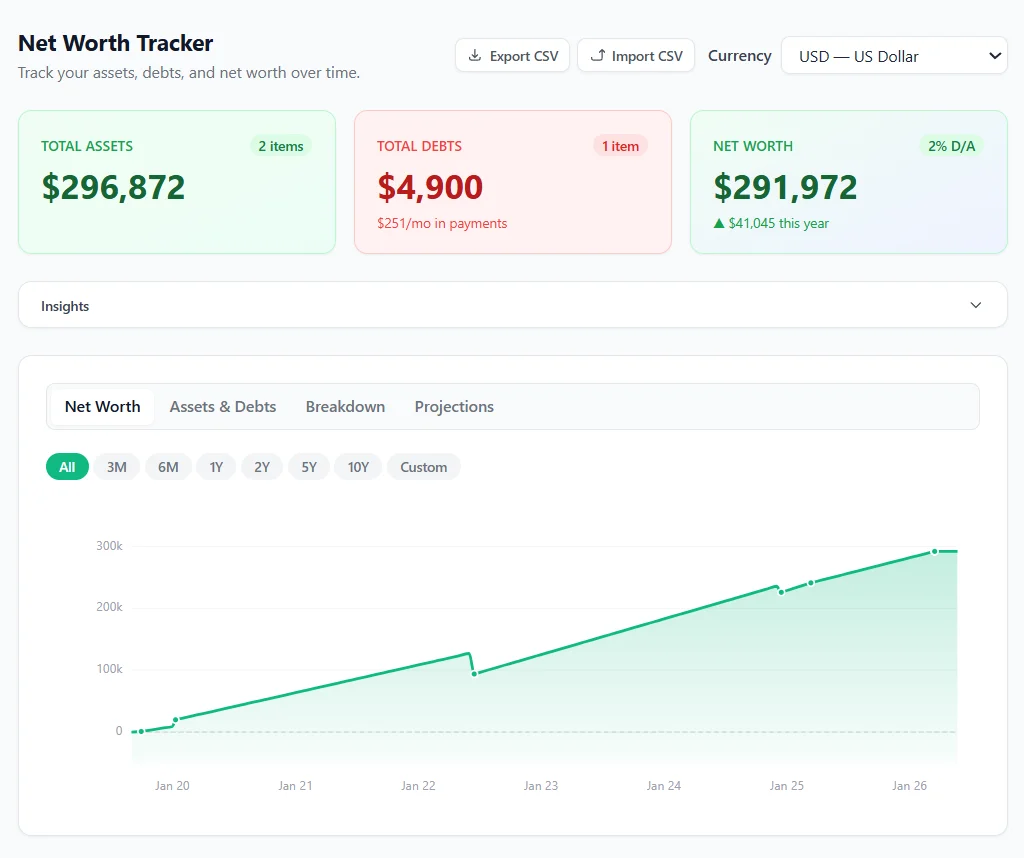
CSV is useful for reviewing values in a spreadsheet or moving tracker items between accounts. It is not a complete account backup: the export contains the fields supported by the CSV columns, not every tracker setting or account record.
Export the current tracker
- Sign in and open Net Worth Tracker.
- Select Export CSV above the summary cards.
- Save the downloaded
net-worth-export-YYYY-MM-DD.csvfile.
The export creates one row for each dated value. An asset or debt with several timeline entries therefore appears on several rows.
The columns are:
| Column | Meaning |
|---|---|
type |
asset or debt |
name |
The tracker item's name |
assetClassKey |
The asset class used by projections, when present |
apy_pct |
Annual percentage rate as a percentage, such as 6.5 |
monthly_payment |
Monthly debt payment, when present |
date |
Timeline date in YYYY-MM-DD format |
value |
Asset value or remaining debt balance on that date |
Exporting before a large edit also gives you a useful reference copy. Keep sensitive financial CSV files in a secure location.
Prepare a CSV for import
The safest starting point is a file exported from the tracker because it already has the correct headers. Keep at least these columns:
type,name,date,value
The optional assetClassKey, apy_pct, and monthly_payment columns may be retained. Do not change asset or debt into other labels. Use plain numbers without currency symbols or thousands separators. Use normal CSV quoting for a name that contains a comma.
Use several rows with the same type and name to import a history. For example, two asset rows named Savings Account with different dates become one asset with two timeline entries.
Preview and apply an import
- Open Net Worth Tracker and select Import CSV.
- Choose a
.csvfile no larger than 500 KB. - Review Import Preview. It shows the number of valid assets and debts, how many records will merge, skipped rows, and row-specific warnings.
- Select Cancel to revise the file, or select Import N items to apply the valid records.
- Wait for the success message before leaving the page.
The import accepts at most 5,000 data rows. Dates must use YYYY-MM-DD format with a year from 1900 through 2200. Values must be non-negative and no greater than one billion; APY must be from 0 through 100. Invalid rows are skipped. An unknown asset-class key is ignored while the rest of an otherwise valid row can still be imported.
Understand how merging works
Import never offers a replace-all mode and does not delete existing items.
- An imported row matches an existing item when both have the same type and the same name, ignoring capitalization.
- A match adds new timeline dates to the existing item.
- If both files contain the same item and date, the imported value wins for that date.
- Optional asset class, APY, and monthly-payment values are updated when the incoming item supplies them.
- An item with a new type-and-name combination is added as a new tracker item.
For example, importing asset,Savings Account,... merges with an asset named savings account, but it does not merge with a debt of that name.
Fix common import warnings
- Missing required column: restore
type,name,date, andvaluein the first row. - Invalid type: use only
assetordebt. - Invalid date: use
YYYY-MM-DD, such as2026-07-14. - Invalid value: remove currency symbols and use a non-negative number.
- Unknown assetClassKey: start from a fresh tracker export or leave that optional cell blank.
- No valid items found: correct the reported rows and select the file again.
Always inspect the tracker after importing. If the file used the wrong names or dates, correct the CSV and the affected tracker items before importing again; another import will merge rather than roll back the first one.
For adding and updating items directly, see Net Worth and Monthly Cash Flow. For calculations that do not change saved tracker data, see Using the Financial Calculators.